
 Bijay
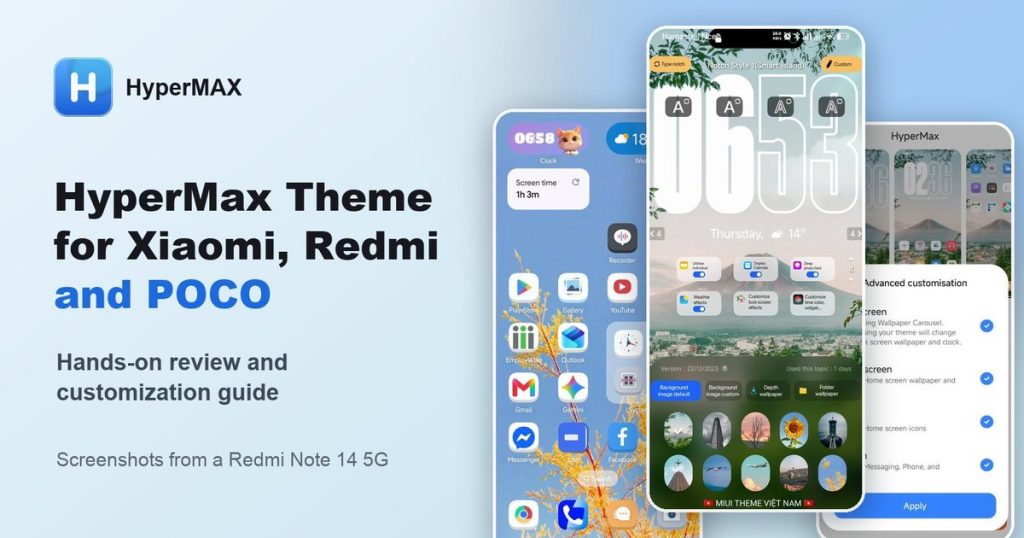
HyperMax is a free theme by KimDung for Xiaomi, Redmi and POCO phones. You notice the lock screen first. The clock is a row of tall outlined digits, a black Smart Island sits across the top, and on some wallpapers the subject drifts in front of the numbers. Behind all that is a Custom menu so long that I lost count of the switches.
I applied it on my Redmi Note 14 5G (Global) running HyperOS 3.0, recorded my screen on October 29, 2026, and tested the lock screen editor and the Custom menu. I ran the clock, depth effect, Smart Island, backgrounds, wallpaper effect, music card, notifications, shortcuts and Focus mode. For the rest (fingerprint, face icon, charging effect, AOD, StandBy, personal quotes, dock) I only read the options, and I’ve marked those as menu only. This page says what I saw working, what I didn’t test, and what to check before you tap Apply.
Short verdict. HyperMax is worth installing if you like adjusting a lock screen and want a big, bold clock. If you want a theme that looks finished the second you apply it, the Custom menu may be more work than you wanted. It is made for Xiaomi, Redmi and POCO phones, and I tested one of them.
What I liked: the large outlined clock, the depth effect behind it, a Smart Island you can reposition in pixels, and Focus mode text you can rewrite.
What I didn’t: the Custom menu is long and takes patience, a few labels are still Vietnamese or read like machine translation, and several features (AOD, StandBy, fingerprint effects, charging effect) I couldn’t confirm.
How I tested this. Phone: Redmi Note 14 5G (Global) on HyperOS 3.0. Evidence: two screen recordings (one of about five minutes, one of about fifteen seconds) and four screenshots, all from October 29, 2026. I used the theme for the length of the test, not for weeks, so I can’t speak to battery use or stability over time. Anything I only saw as a menu entry is marked that way.
What the HyperMax theme is and who made it
In the Themes app on my phone the listing reads Free, 36.8 MB, tagged Text clock and Simple, from a designer called KimDung with seven works listed.
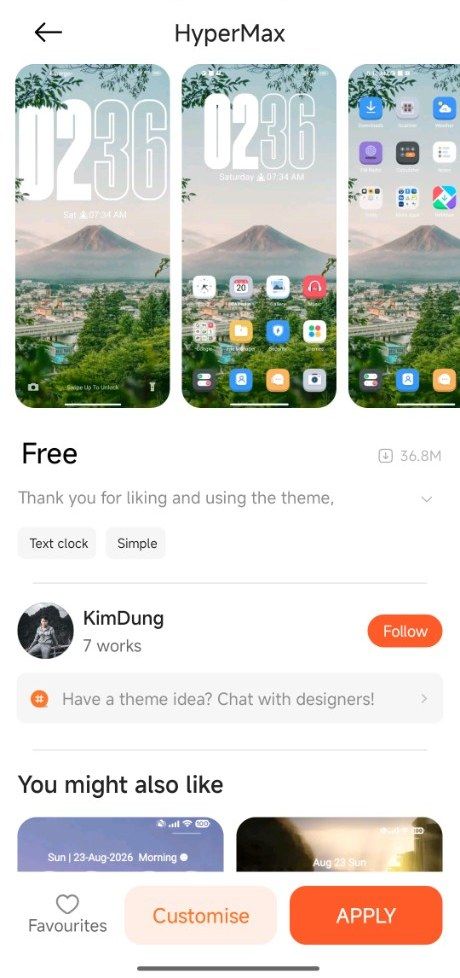
| Theme name | HyperMax |
|---|---|
| Designer | KimDung (7 works listed on the designer’s page) |
| Price | Free |
| Size | 36.8 MB on the store page |
| Store tags | Text clockSimple |
| Made for | Xiaomi, Redmi and POCO phones |
| My test phone | Redmi Note 14 5G (Global), HyperOS 3.0 |
| Lock screen editor version | 22/12/2023, as shown inside the editor |
| Credits inside the app | “Mod by Dung Tam Dao” at the top of the Custom menu, “Vietnameseization and Editing by KimDung” at the bottom, “MIUI Theme Việt Nam” in the editor footer |
The credits are worth a minute. The Custom menu opens with “Mod by Dung Tam Dao” and ends with “Vietnameseization and Editing by KimDung”, and the lock screen editor is signed MIUI Theme Việt Nam. My reading is that KimDung translated and edited a customization engine that came from a Vietnamese theme community. The theme doesn’t say that in so many words, so treat it as my interpretation, not a fact. It would also explain why a few labels still read like machine translation, which I come back to below.
What HyperMax changes on your phone
Before anything is applied, the Themes app shows a sheet called Advanced customisation. It lists four parts, and all four were ticked on my phone. These are the phone’s own words:
- Lock screen: “You’re using Wallpaper Carousel. Customising your theme will change your Lock screen wallpaper and clock.”
- Home screen: “Change Home screen wallpaper and clock”
- Icons: “Change Home screen icons”
- System: “Change Messaging, Phone, and Settings”
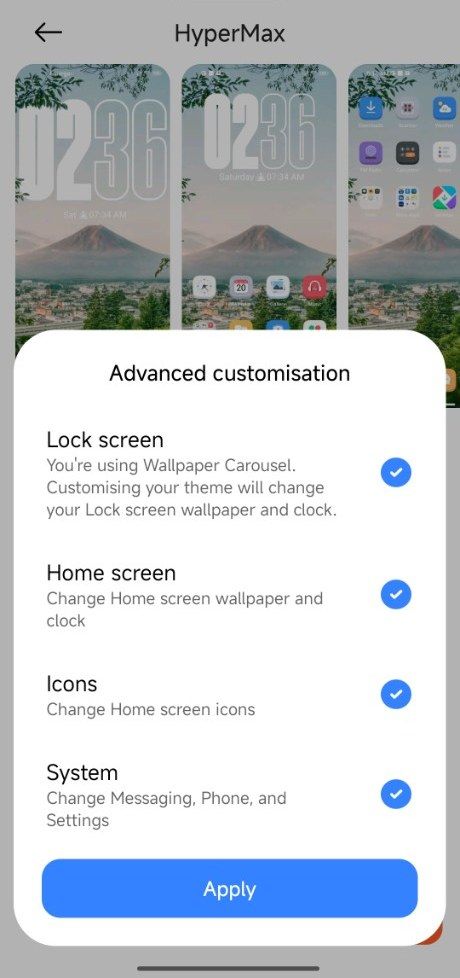
That sheet is the most reliable summary of the theme’s scope I can give you, because it comes from the phone and not from me. If you use Wallpaper Carousel and want to keep it, untick Lock screen before you apply. The sheet says the theme will replace the lock screen wallpaper and clock.
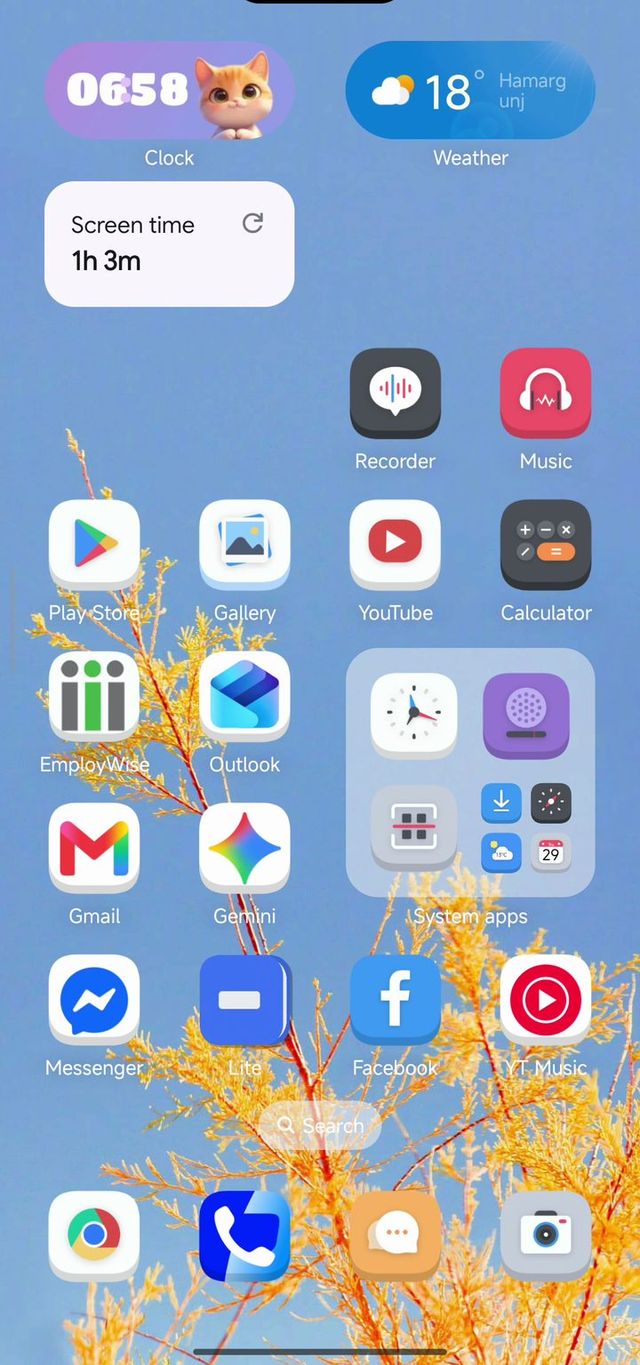
After applying, my home screen showed the same yellow-flower wallpaper I had picked in the lock screen editor, a pill-shaped text clock at the top (which fits the Text clock tag) and rounded, softly shadowed app icons. I didn’t capture a before-and-after of every app, so I won’t tell you which individual icons changed.
HyperMax features side by side
Here is every major feature I came across. “Seen” means it is in my recordings. “Menu only” means I read the option but did not run it, so I can’t tell you how it looks or behaves.
HyperMax features, what the menu offers, and what I saw
| Feature | What the menu offers | In my testing |
|---|---|---|
| Outlined lock screen clock | Date styles, date text styles 6 and 7, opacity setting | Seen |
| Depth effect | Deep photo field switch, depth wallpapers, depth coefficient | Seenwith the built-in bird wallpaper |
| Smart Island | Six notch types, island types, Charge, Notification and Music switches, song title, X and Y position | SeenI changed the notch type and flipped the island switches, but did not test each with a call or alarm |
| Backgrounds | Ten built-in backgrounds, custom image, depth wallpaper, folder wallpaper | Seenbuilt-in set and the folder screen. The custom image option only got as far as its permission prompt |
| Wallpaper effects | Do not use, Effect 1 to 4, background zoom, automatic blur, darken value | SeenEffect 1 only |
| Music card | On or off, position, background colour, opacity, large cover style | Seena card with cover art while audio was playing |
| Lock screen notifications | On or off, number shown (4 on mine) | Seen |
| Shortcuts | Camera and flashlight keys, small white bars, unlock text, icon colour | Seencamera and flashlight icons and the unlock text |
| Fingerprint | Phone model, theme effect, fingerprint type, pattern opacity, blur, hide system icon | I saw a ring and a “Press firmly on the sensor” hint on the lock screen |
| Face unlock icon | Show or hide | |
| Charging effect | “1. MagSafe full-screen charging effect”, shown only while charging | |
| Focus mode | On or off, title, custom text, icon position | SeenI typed my own text and opened the card |
| AOD | On or off, screen effect, wallpaper style, always bright | |
| StandBy | On or off, start on charge, type, direction, shortcuts | |
| Personal quotes | Quote text, signature, widget colour | |
| Dock and home screen clock | Dock on or off, position, opacity, blur, clock size, time colour sync | I saw the home screen result |
The HyperMax lock screen in detail
The clock, date and depth effect
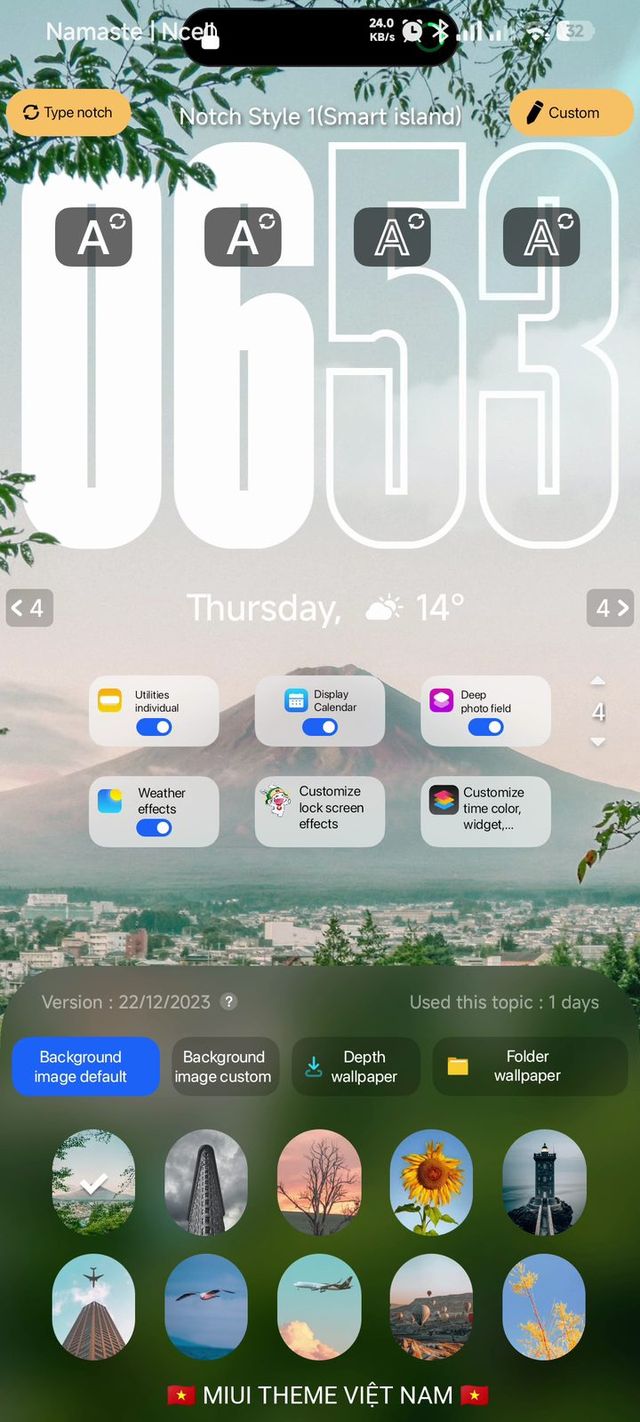
The clock is the part people will screenshot. The digits are tall and outlined, with the last two filled white. On the built-in bird wallpaper, the bird sits in front of the minutes. The editor calls this Deep photo field, and the switch was on for my recording. It makes the picture and the clock read as layers instead of one flat photo.
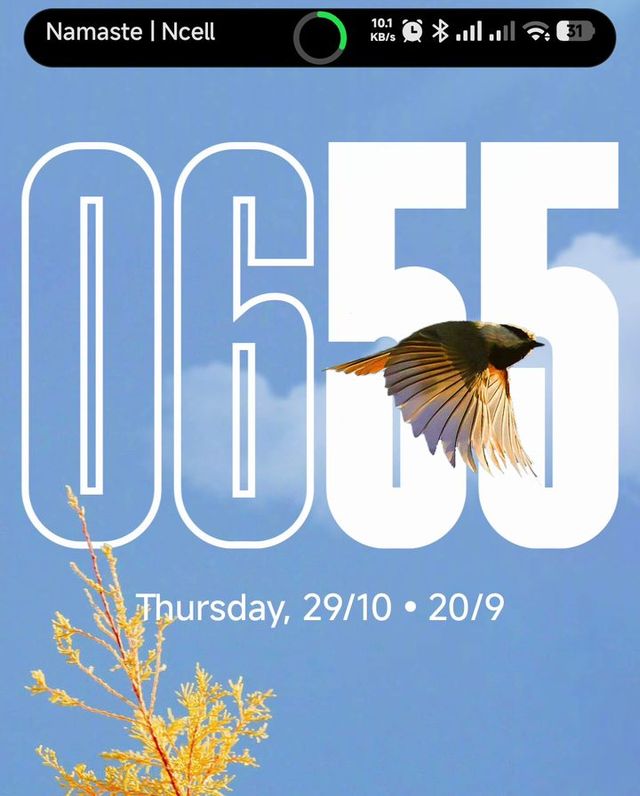
The date line changes with the style. In one style mine showed the weather, a cloud and 14°. In another it showed “Thursday, 29/10 • 20/9”. That second pair of numbers is not the Nepali date, because another card on the same phone showed Kartik 12, 2083 that morning. If a calendar you don’t recognise bothers you, the Date conversion switch in the date and time group is where I would start.
Smart Island and notch types
The black pill at the top of the lock screen is the Smart Island. In the Custom menu, group 2 holds the Type Notch picker, which offers Turn off and Type Notch 1 (Smart island) through Type Notch 6. I ended on Type Notch 6. Only Type Notch 1 uses the island settings under it, and the menu says so: “Only valid when selecting type 1 (Smart island)”.
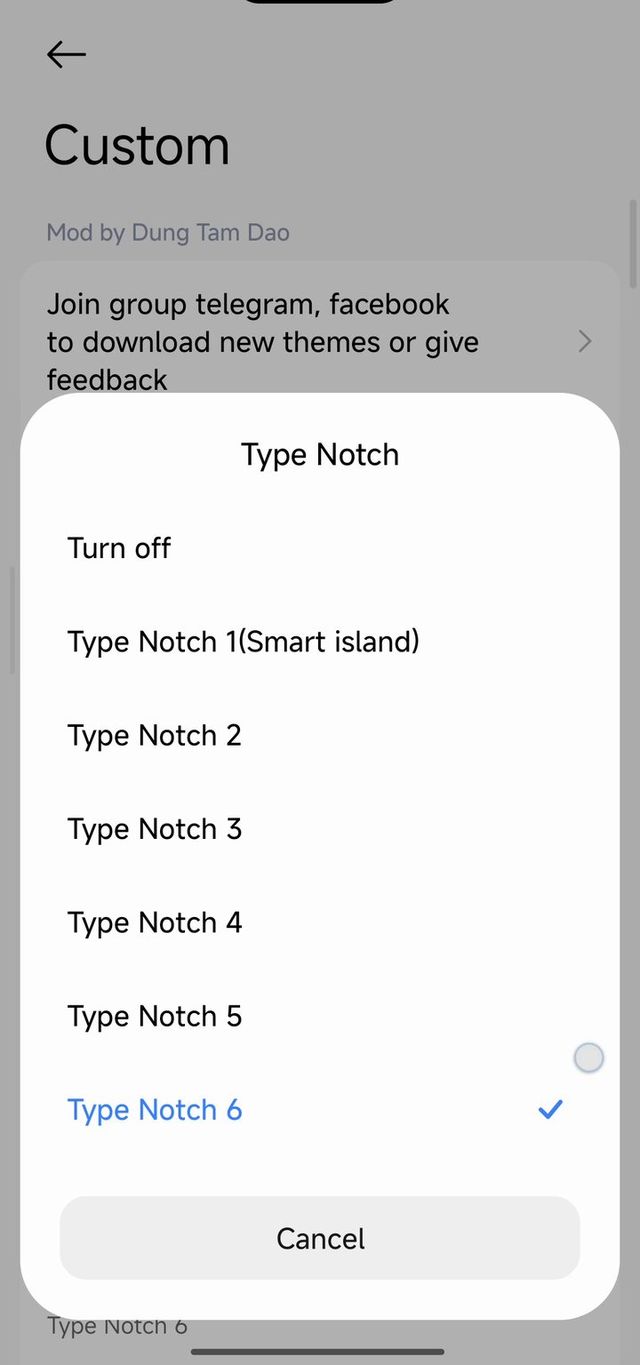
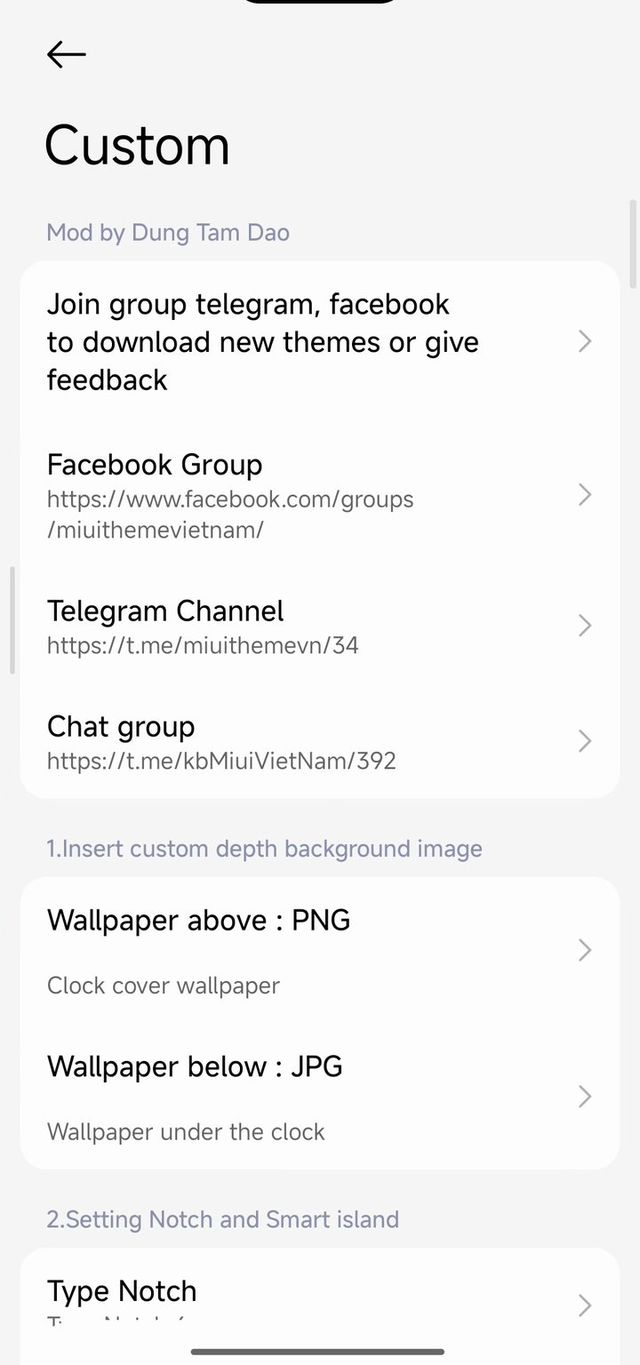
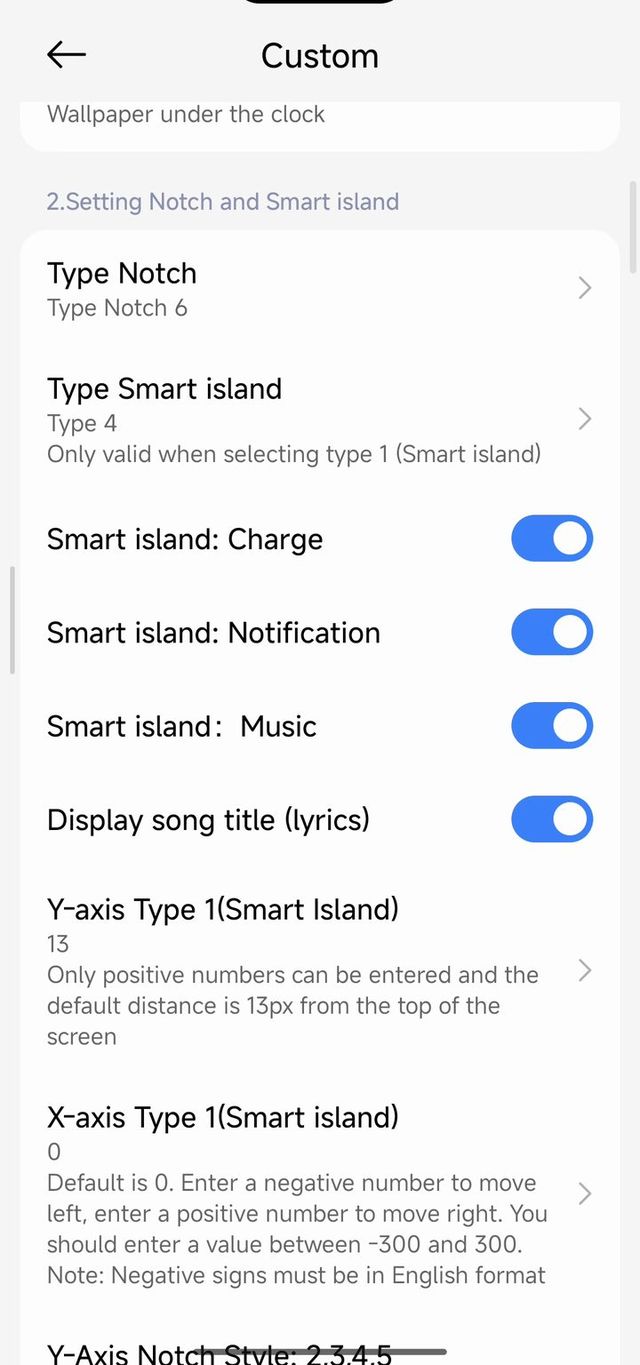
Under the picker there is a Type Smart island option (mine was Type 4), switches for Smart island: Charge, Notification and Music, and a switch for displaying the song title. Position is set in pixels. The Y-axis for Type 1 defaults to 13 px from the top, the X-axis defaults to 0 and accepts -300 to 300, and notch styles 2 to 5 have their own Y-axis, default 24 px. The menu warns that negative numbers must be typed with the English minus sign, which is the kind of detail that trips you up on a phone with another keyboard language.
Backgrounds, depth wallpapers and the folder option
The lock screen editor has four tabs along the bottom: Background image default, Background image custom, Depth wallpaper and Folder wallpaper. The default tab offers ten built-in backgrounds, including a mountain, a skyscraper, a sunflower, a lighthouse, planes and a flying bird. The Type notch and Custom buttons sit at the top, and four small clock style buttons sit over the digits.
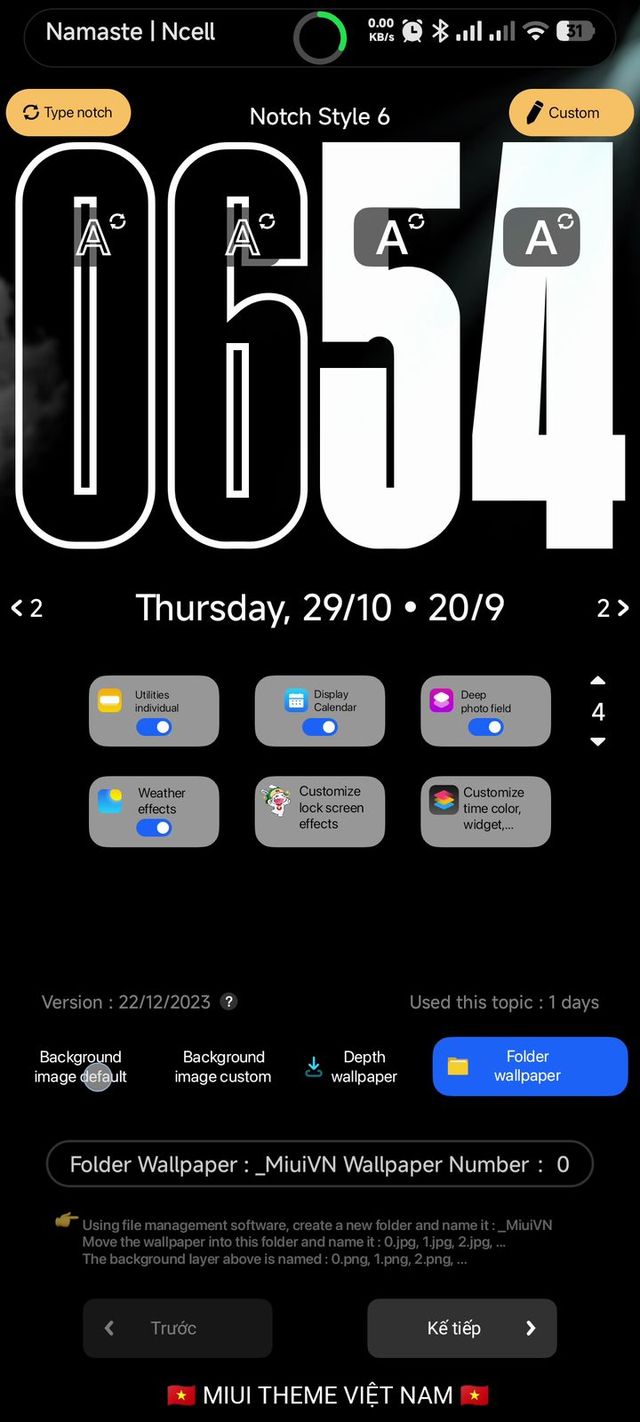
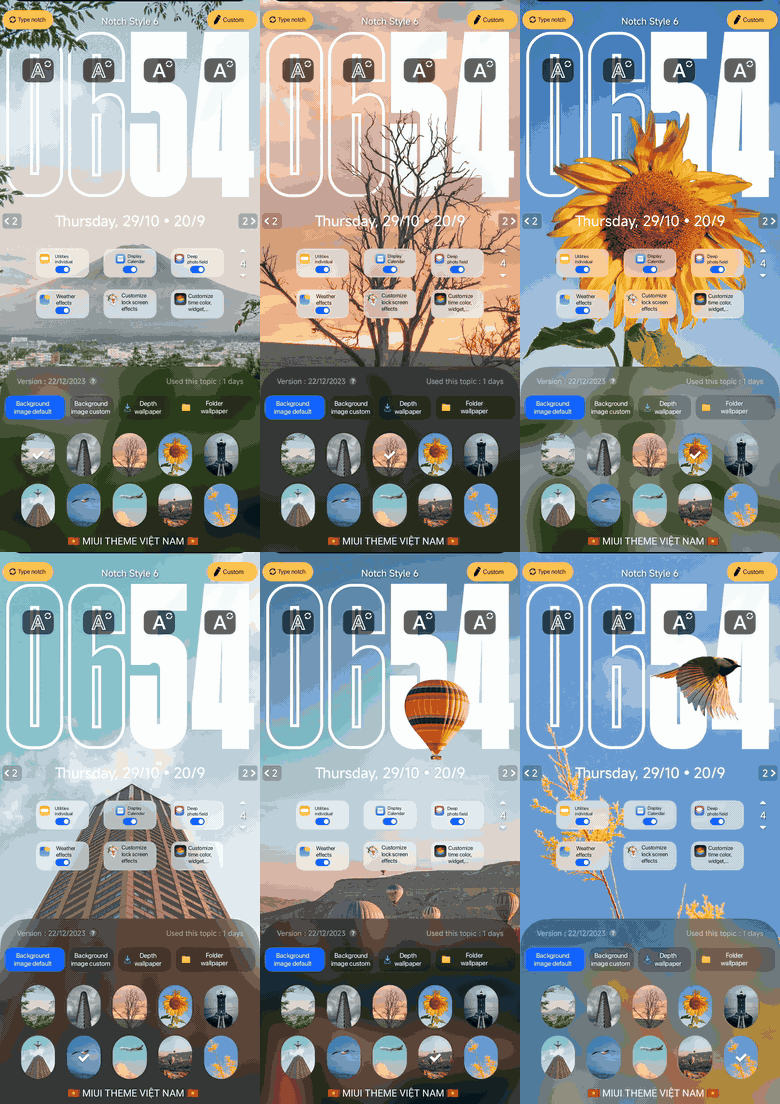
Choosing Background image custom brings up a prompt asking whether to allow “WallPaper” to access photos and media on your device. Decide whether you are happy with that before you tap Allow. I didn’t go further than the prompt.
The Folder wallpaper tab explains its own setup. Using a file manager, create a folder named _MiuiVN, move your wallpapers into it and name them 0.jpg, 1.jpg, 2.jpg and so on. The layer that sits above the clock for the depth effect is named 0.png, 1.png and so on. Mine read “Wallpaper Number: 0”, which I took to mean the folder was empty. The two buttons at the bottom of that tab still say “Trước” and “Kế tiếp”, which are Vietnamese for previous and next.
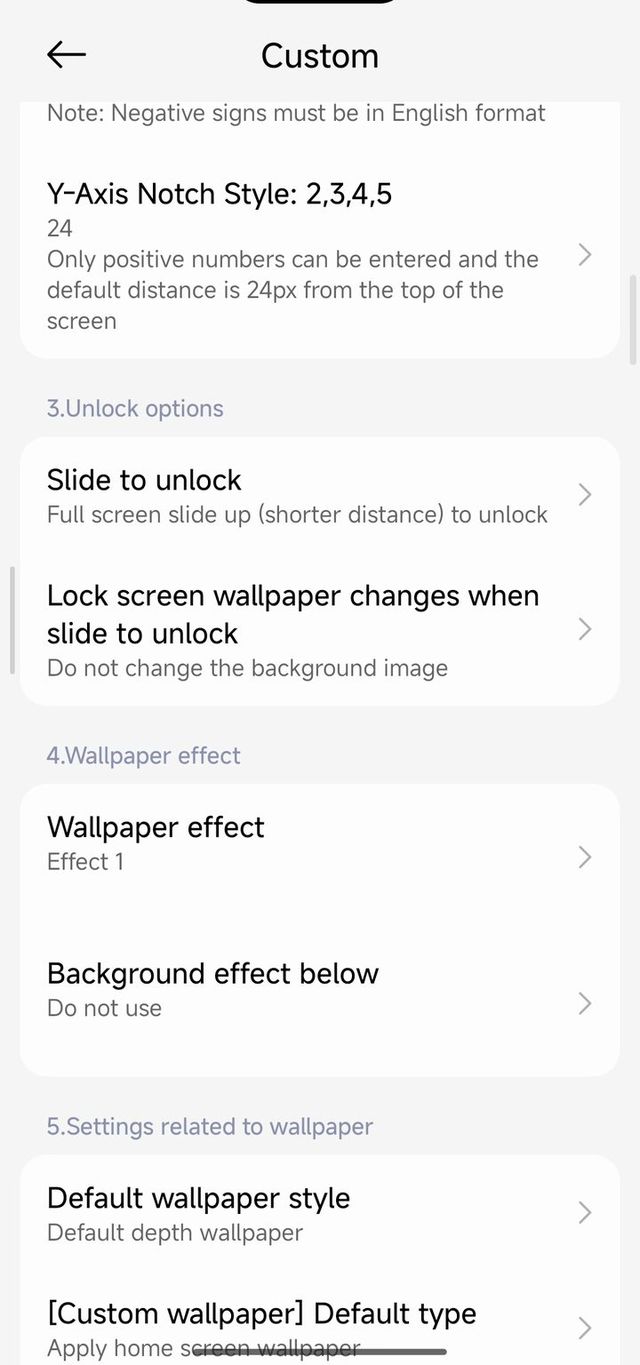
Wallpaper effect, in group 4, offers Do not use and Effect 1 to 4. I tapped Effect 1 and the lock screen background went dark while the clock and the bird stayed bright.
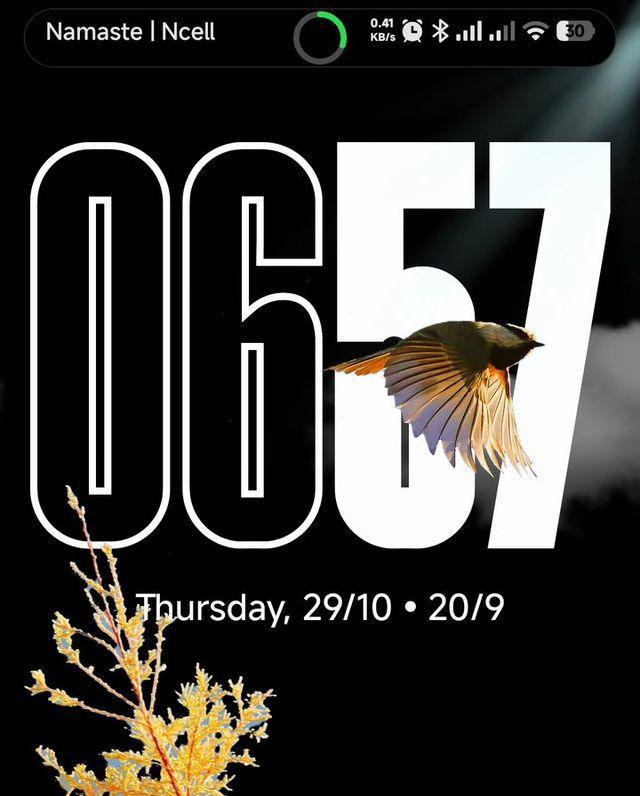
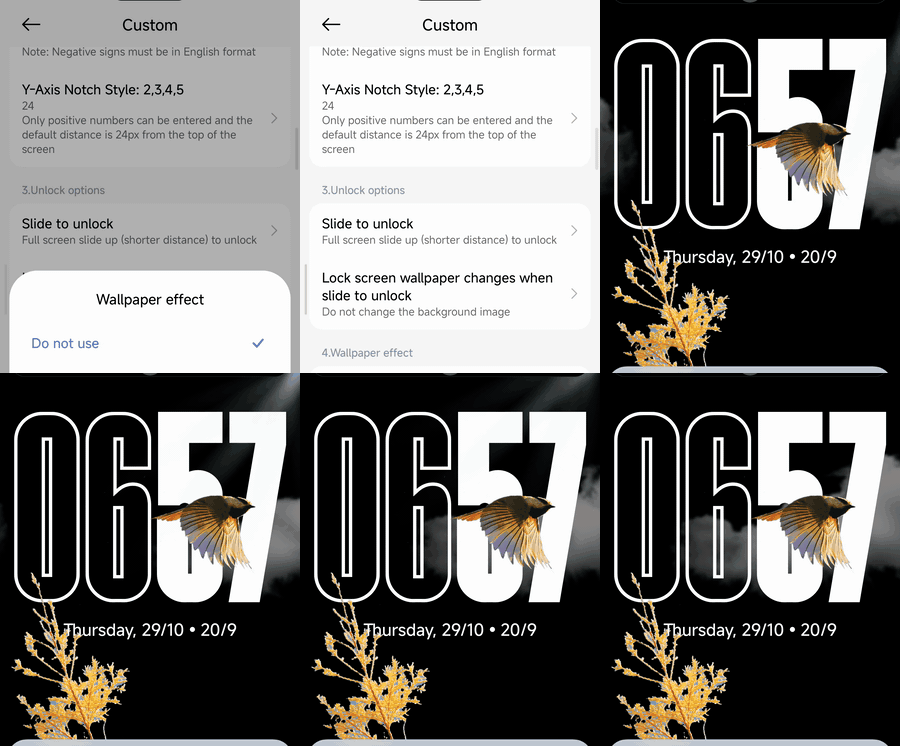
Group 5 adds more wallpaper switches: a background zoom effect (the menu warns that turning it on disables the lock screen time animation), automatic folder wallpaper changes, double tap on either side of the screen to switch wallpapers, automatic blur, and a darken value from 20 to 80 for dark mode.
Music, notifications and shortcuts
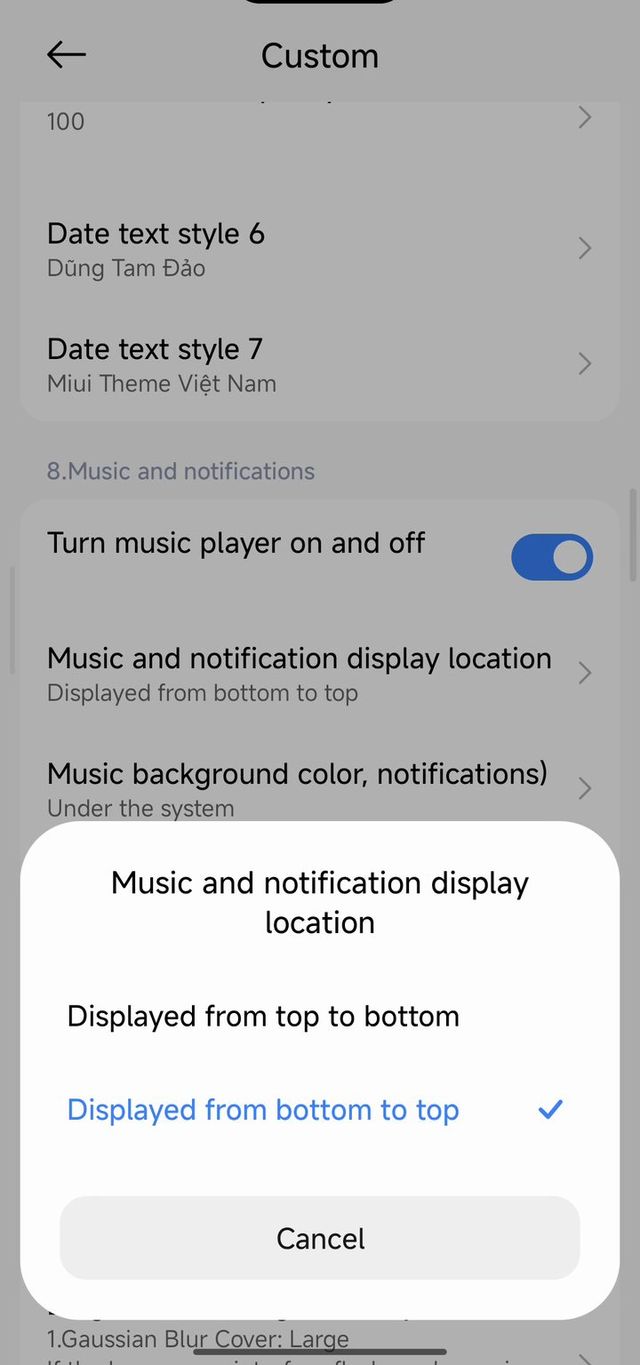
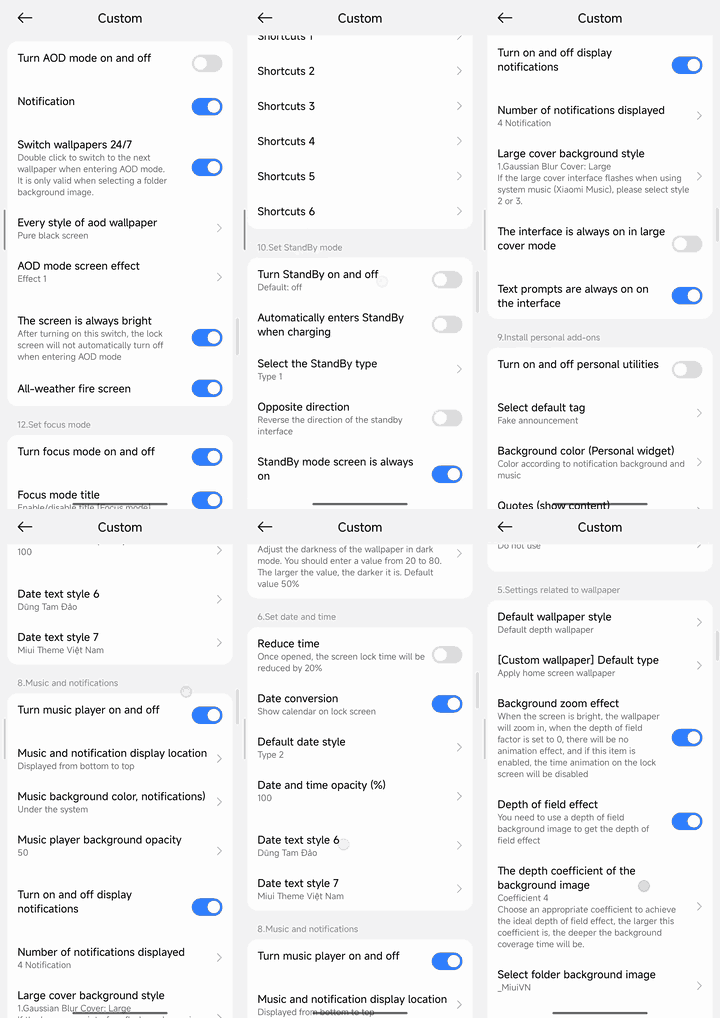
While I was recording, audio was playing, and the lock screen showed a music card with cover art above the notification cards. Group 8 controls that area. You can turn the music player on or off, show the stack from bottom to top or top to bottom, set the background colour (mine was “Under the system”) and opacity (50 on mine), choose how many notifications appear (4 on mine) and pick a large cover style (mine was “1. Gaussian Blur Cover: Large”). The menu adds a tip: if the large cover flashes while using the system Xiaomi Music player, choose style 2 or 3.
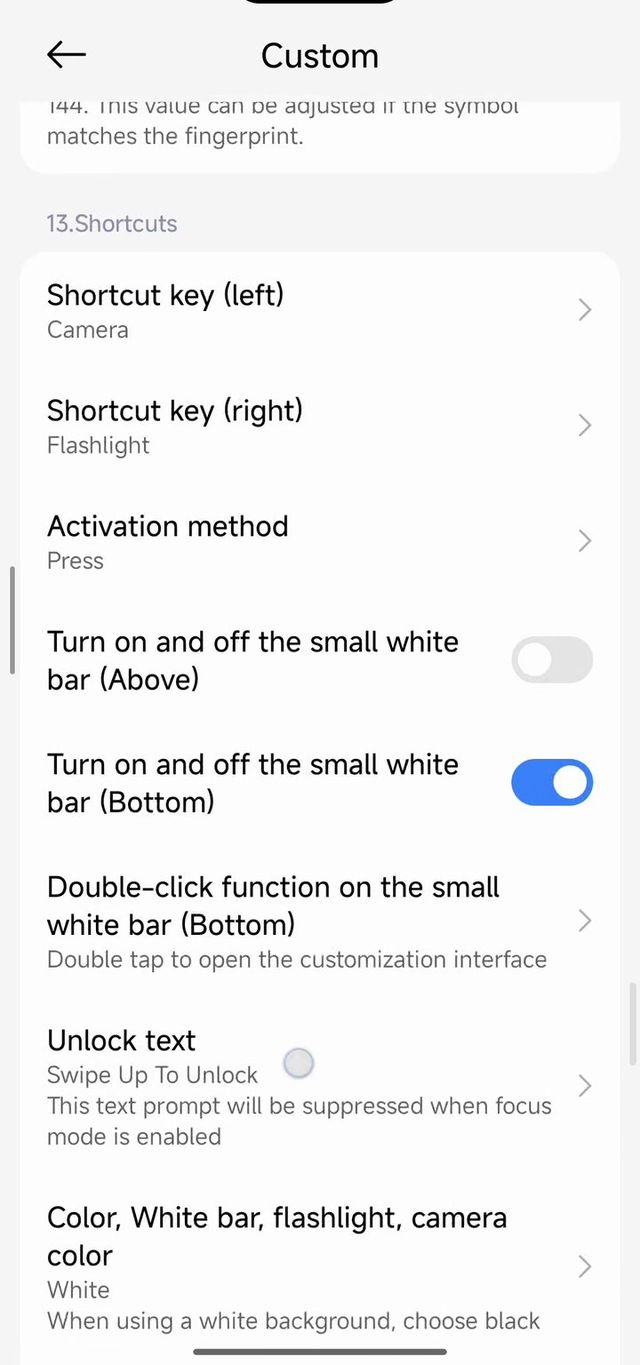
Group 13 covers shortcuts. The left key is Camera and the right key is Flashlight, with the activation method set to Press. There are two small white bars, one above and one below, that you can switch on or off, and a double tap on the bottom bar is described as opening the customization interface. The unlock text reads “Swipe Up To Unlock”, and the menu says it is hidden while focus mode is on. The icon colour is white by default, with a note to choose black if you use a light background. Group 3 sets the unlock gesture, and mine read “Full screen slide up (shorter distance) to unlock”.
Fingerprint, face unlock and charging
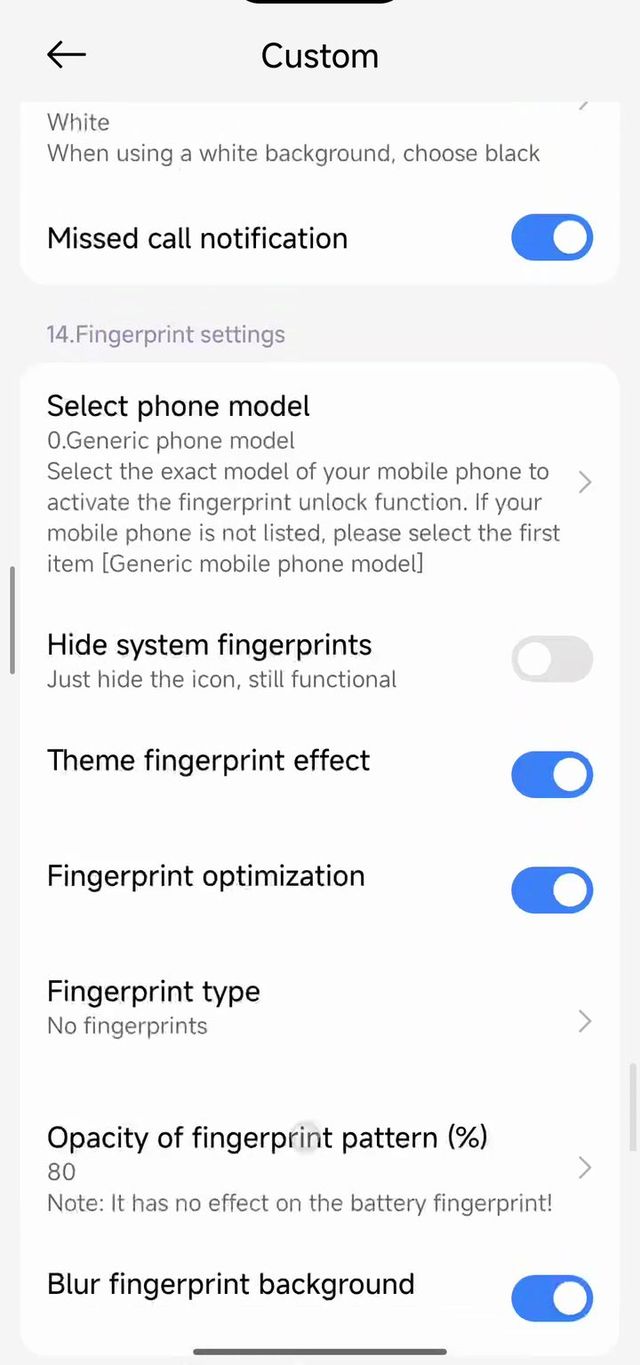
Group 14 is the fingerprint group. Select phone model starts at “0. Generic phone model”, and the menu says to pick your exact model to activate the fingerprint unlock function, or the first item if yours isn’t listed. If a fingerprint effect is why you’re here, that is the first setting I would check. The rest of the group is Hide system fingerprints (“Just hide the icon, still functional”), Theme fingerprint effect, Fingerprint optimization, Fingerprint type (mine said “No fingerprints”), Opacity of fingerprint pattern (80 on mine) and Blur fingerprint background.
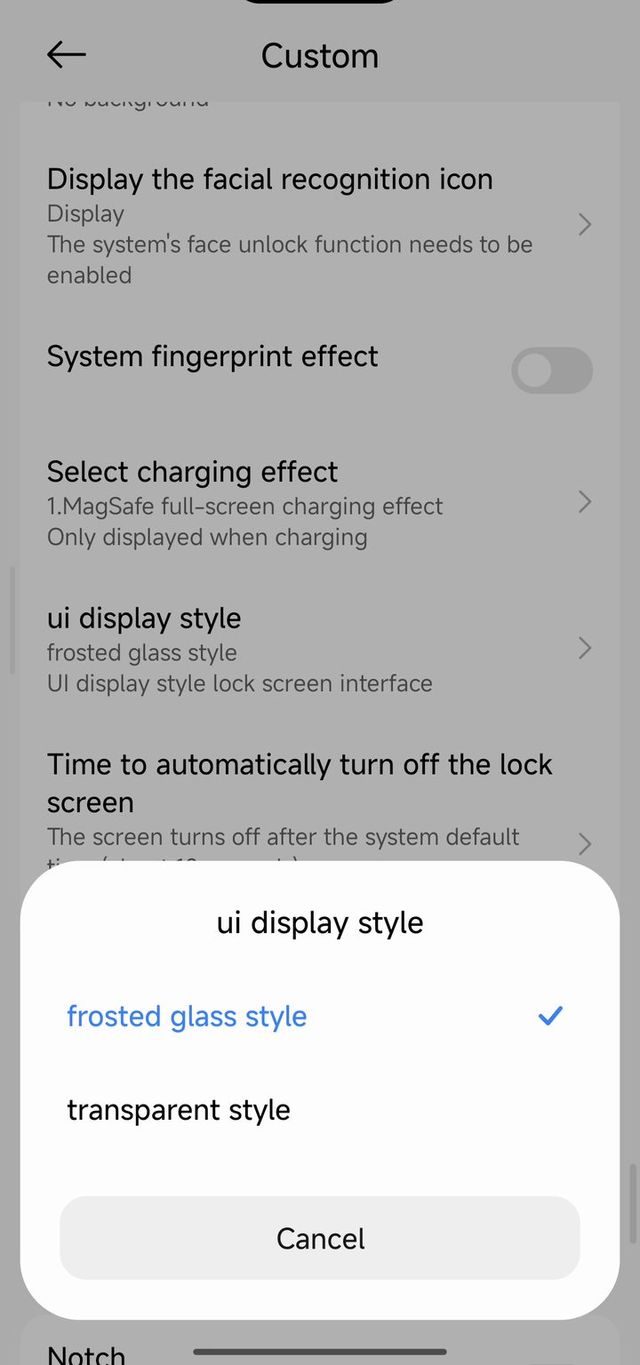
Group 15 holds the other lock screen settings: a switch for the facial recognition icon (the phone’s own face unlock has to be on), System fingerprint effect, a charging effect picker (“1. MagSafe full-screen charging effect”, shown only while charging), a UI display style of frosted glass or transparent, the time before the lock screen turns off (about 10 seconds by default) and a lock screen always on switch.
What I actually saw on the lock screen was a ring near the bottom and a hint reading “Press firmly on the sensor”. I did not test the fingerprint types, the charging effect or the face icon, so I can’t say how they look.
Focus mode, AOD and StandBy
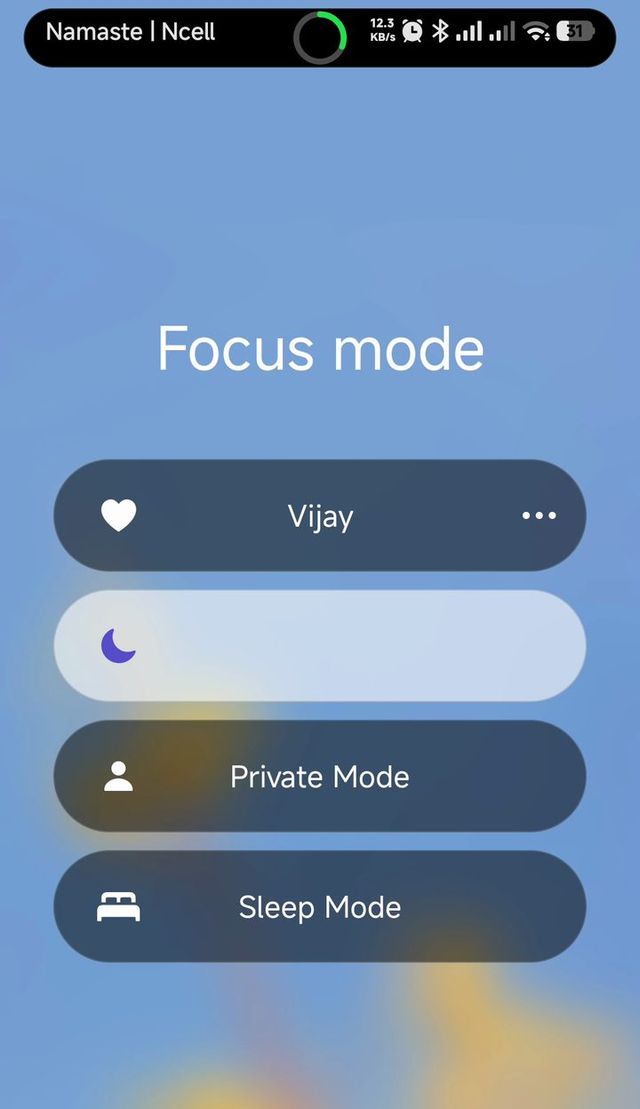
Focus mode is group 12: a main switch, a title switch, custom text and an icon position (144 px from the bottom by default). The default text was a person’s name, which I replaced with my own. The lock screen then showed a heart icon with my text near the bottom, and the Focus mode card listed my text, then Do Not Disturb Mode, Private Mode and Sleep Mode.
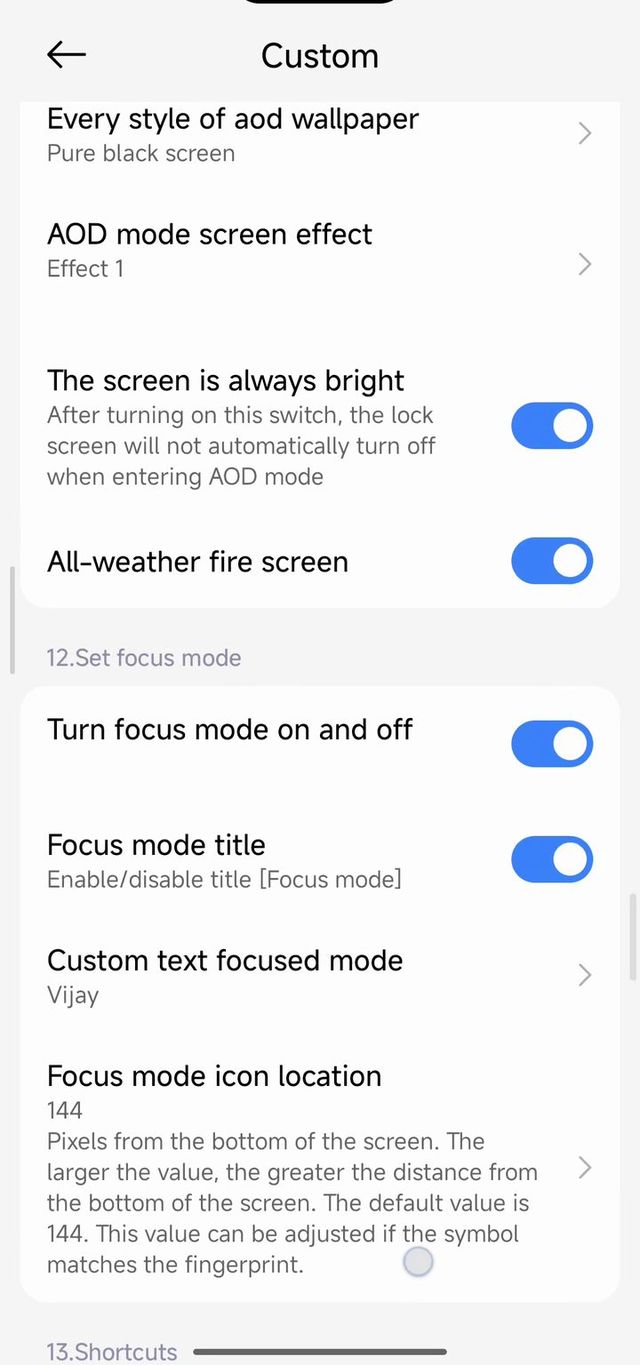
AOD is group 11. It has an on or off switch, a Notification switch, Switch wallpapers 24/7 (a double tap moves to the next wallpaper, and it only works with a folder background), Every style of AOD wallpaper (mine said “Pure black screen”), an AOD mode screen effect (Effect 1), The screen is always bright and All-weather fire screen. StandBy is group 10. It is off by default and offers automatic start when charging, a StandBy type (Type 1 on mine), an opposite direction switch, a StandBy screen is always on switch, a StandBy fireproof screen switch and Shortcuts 1 to 6.
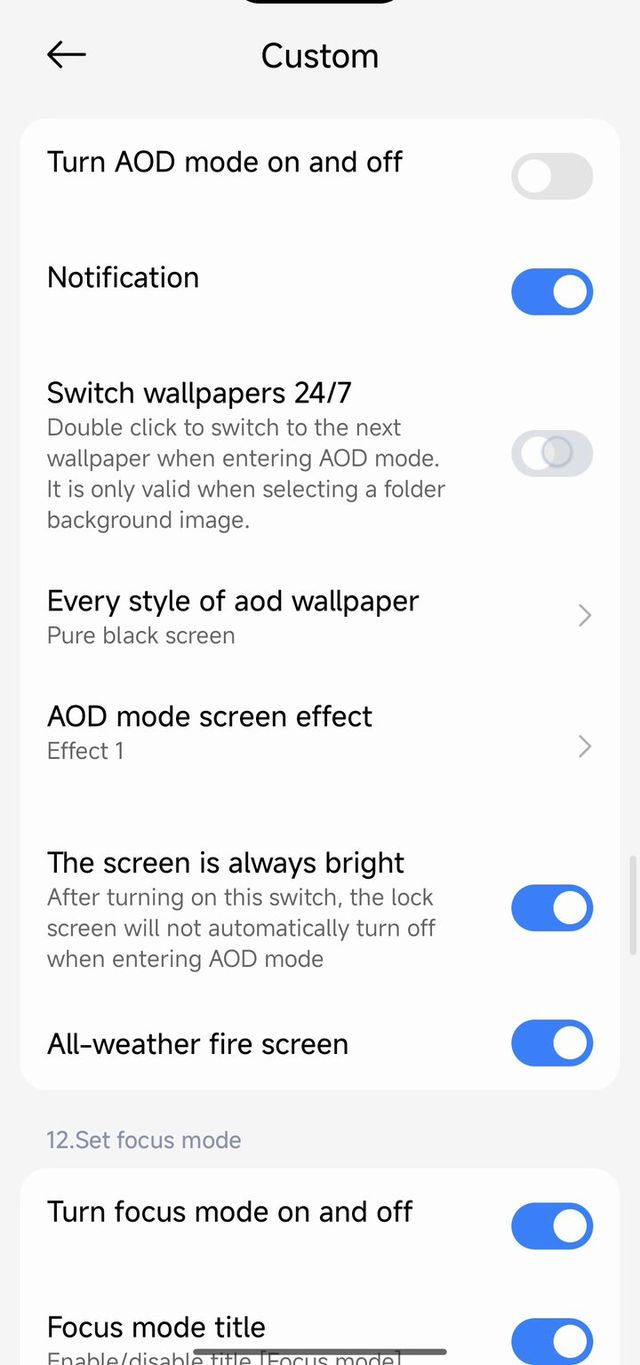
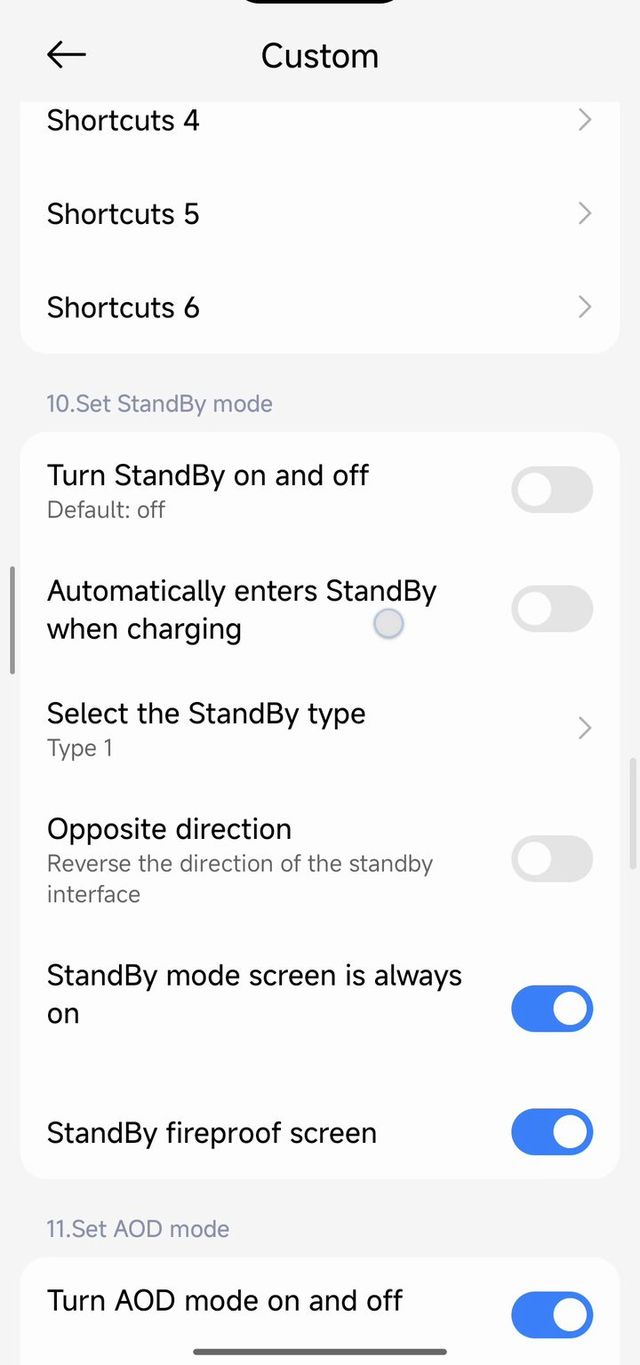
I read both menus but never captured AOD or StandBy running, so I am not reviewing either one. “All-weather fire screen” and “StandBy fireproof screen” look like machine-translated wording. My guess is burn-in protection, but the menu doesn’t say, and I would leave them alone until you have tested them yourself.
Group 9 adds personal widgets: a switch for personal utilities (off on mine), a default tag, a background colour for the widget, and a line of quote text with a signature that you can rewrite. I didn’t try it.
Home screen, dock and main screen clock
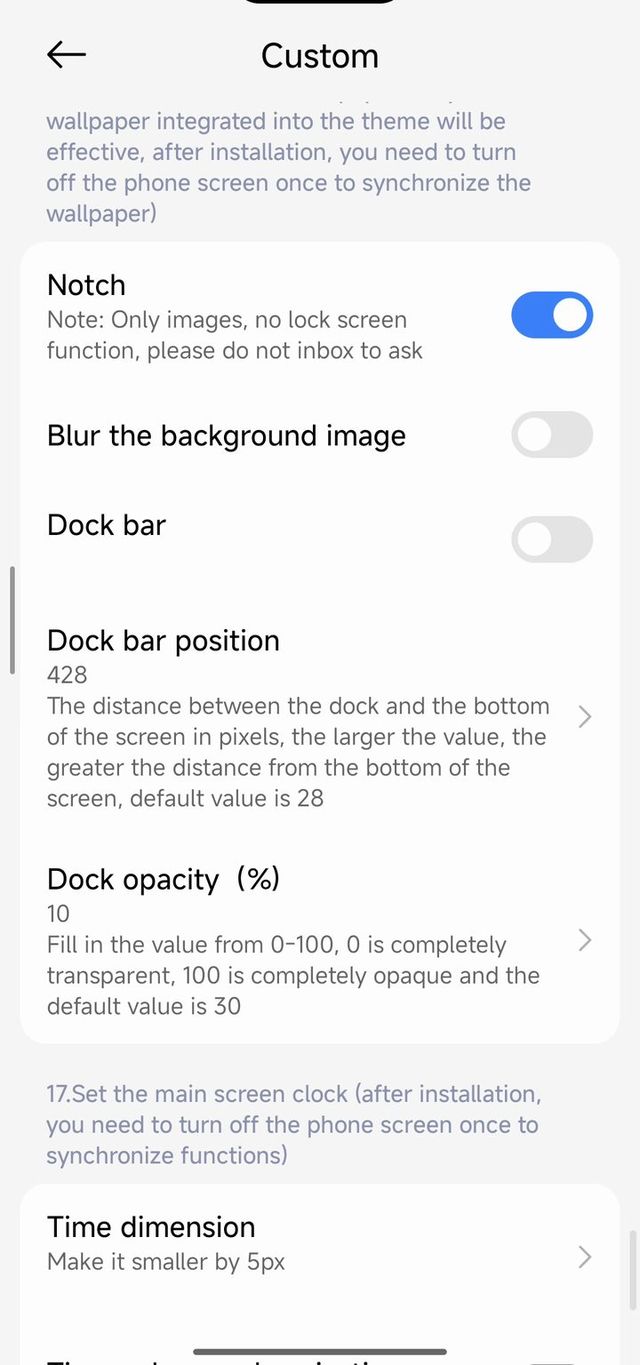
Groups 16 and 17 cover the home screen. The menu says only the wallpaper bundled with the theme takes effect there, and that after installing you should turn the phone screen off once to sync the wallpaper. Group 17 says the same for the clock. The options are a Notch switch (the menu notes this changes images only, with no lock screen function), Blur the background image, a Dock bar switch, Dock bar position (the distance from the bottom in pixels, default 28), Dock opacity (0 to 100, default 30, and mine was 10), Time dimension (“Make it smaller by 5px”), Time color synchronization, Show date and Dynamic depth of field object. I only saw the end result on my home screen, not each option, so treat these as the menu’s description.
Where to download the HyperMax theme safely
Open the Themes app on your Xiaomi, Redmi or POCO phone and search for HyperMax. Check three things on the listing: the name is HyperMax, the designer is KimDung, and the price is free with a size around 36.8 MB. That is the route I used. The Install guide has the official store link and the browser fallbacks if the link doesn’t open.
You don’t need a password for this theme. A MIUI Themez admin confirmed that in a March 6, 2024 reply. If a page or a file asks you for one, close it and go back to the Themes app.
A few custom ROMs, such as Xiaomi.eu and MIUIRoom, let you import an MTZ file through the Themes app. I haven’t used that route. The theme belongs to KimDung, and a free listing doesn’t give anyone permission to redistribute the file, so only use a copy you are allowed to use. The Install guide covers the MTZ methods and their risks.
How to apply HyperMax and open the Custom menu
- Open the Themes app and search for HyperMax. Check that KimDung is the designer.
- Download the theme if you haven’t. Mine was already on the phone, so its page showed Favourites, Customise and Apply along the bottom.
- From the store page I went through to the Advanced customisation sheet. Leave Lock screen, Home screen, Icons and System ticked, or untick the parts you want to keep. Untick Lock screen if you use Wallpaper Carousel.
- Tap Apply on that sheet.
- Turn the screen off once and wake it. The Custom menu says the clock and wallpaper sync after that.
- To change settings later, open Themes, then My account, then Lock style, tap HyperMax and tap Customise at the bottom. That opens the Custom menu.
- Change one option at a time and lock the phone to check the result. With this many switches, you won’t know which one caused a change otherwise.
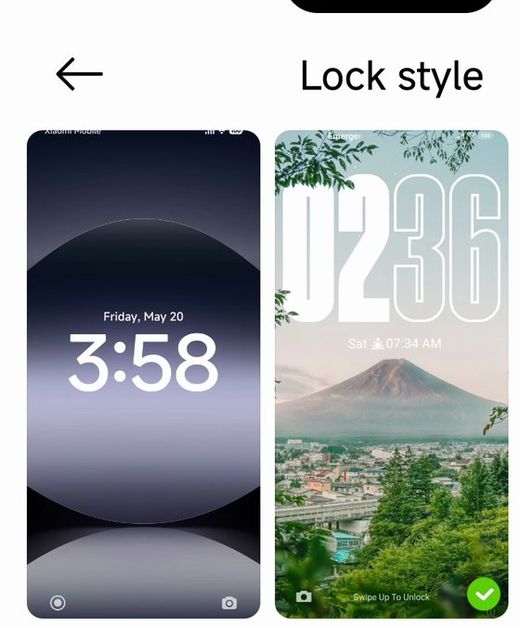
To go back to the default look, open the Themes app, find Classic and tap Apply. The Apply guide covers the other routes and what to check afterwards.
Problems you may run into
Parts of the menu are in Vietnamese. A few labels in the lock screen editor, such as “Trước” and “Kế tiếp”, were never translated. They mean previous and next.
The lock screen wallpaper or clock didn’t change. Check the Advanced customisation sheet and make sure Lock screen is ticked, then turn the screen off once. If you use Wallpaper Carousel, remember the sheet warns that the theme replaces your lock screen wallpaper and clock.
The official link doesn’t open. MIUI Themer recommends opening the page in Chrome or the default Xiaomi browser and trying again.
The Themes app is missing or unsupported. In a March 13, 2024 reply, a MIUI Themez admin said the Themes app may not be supported in your region and that no other app can be used to download themes.
Parts overlap or display wrongly. Both MIUI Themer and MIUI Themez advise restarting your phone after applying the theme.
The music card flashes. The menu says to choose large cover style 2 or 3 if it flashes with the Xiaomi Music player.
Who should use HyperMax and who should skip it
Use it if you have a Xiaomi, Redmi or POCO phone, you like adjusting a lock screen, and a large outlined clock with a Smart Island appeals to you. The Custom menu rewards patience.
Skip it, or at least slow down, if any of these apply:
- You want AOD, StandBy or a fingerprint effect and need to know they work, because I did not test them.
- You want a theme that is finished the moment you tap Apply.
- Your phone isn’t a Xiaomi, Redmi or POCO, or the HyperMax listing doesn’t show up in your Themes app.
- You are put off by partly translated menus.
HyperMax theme FAQ
Yes, it was free on my Themes app listing, at 36.8 MB. The designer shown is KimDung. Inside the app, “Mod by Dung Tam Dao” appears at the top of the Custom menu and “Vietnameseization and Editing by KimDung” at the bottom. My reading is that KimDung translated and edited an existing engine, but the theme doesn’t say so directly.
Yes, on my Redmi Note 14 5G (Global) running HyperOS 3.0. I haven’t tried other HyperOS phones or versions, so check that the listing appears in your Themes app.
I haven’t tested it, so I can’t confirm it. The lock screen editor is dated 22/12/2023, which suggests it was built recently, but that isn’t proof of compatibility. Search for HyperMax in your Themes app. If the listing doesn’t show up, your phone or region doesn’t support it.
It’s made for all three. I tested one Redmi phone, so results on other models may differ, especially for fingerprint settings.
It’s built for Xiaomi’s Themes app and I didn’t test it on other brands. A MIUI Themez admin said in March 2024 that no other app can be used to download themes.
It has a Smart Island, a black pill at the top of the lock screen. The menu offers six notch types, and only Type Notch 1 uses the island settings (Charge, Notification, Music, song title and X/Y position). I flipped the switches but didn’t test them with a call or alarm.
The Custom menu has an AOD group with screen effect, always bright and notification switches. I only read it and never saw AOD running.
The menu has a fingerprint group with phone model, theme effect, fingerprint type and opacity. On my lock screen I saw a ring and the hint “Press firmly on the sensor”, but I didn’t test the effects. Set “Select phone model” first.
No. A MIUI Themez admin confirmed this on March 6, 2024. If a page or file asks for one, close it and use the Themes app.
Some custom ROMs let you import MTZ files through the Themes app, but I haven’t used that route. The theme belongs to KimDung, so only use a copy you’re allowed to use. The Install guide covers the methods and risks.
Open Themes, then My account, then Lock style, tap HyperMax, then tap Customise. Use the four tabs at the bottom of the editor for wallpapers and the Custom menu for clock and date options. Change one option at a time and lock the phone to check.
Open the Themes app, find Classic and tap Apply.
Corrections and contact
I wrote this from my own phone, so it has gaps and may not match yours. If a menu name or behaviour differs on your phone, email me with your phone model and software version (Settings, then About phone). I will check it and update the page and the date at the top. The Editorial and Corrections Policy explains how changes are handled, and the Contact page has my details.
hypermaxtheme.com is independent and is not affiliated with Xiaomi, Redmi, POCO, KimDung or Dung Tam Dao. The theme and product names belong to their owners. Read the Disclaimer for more.