
 Bijay
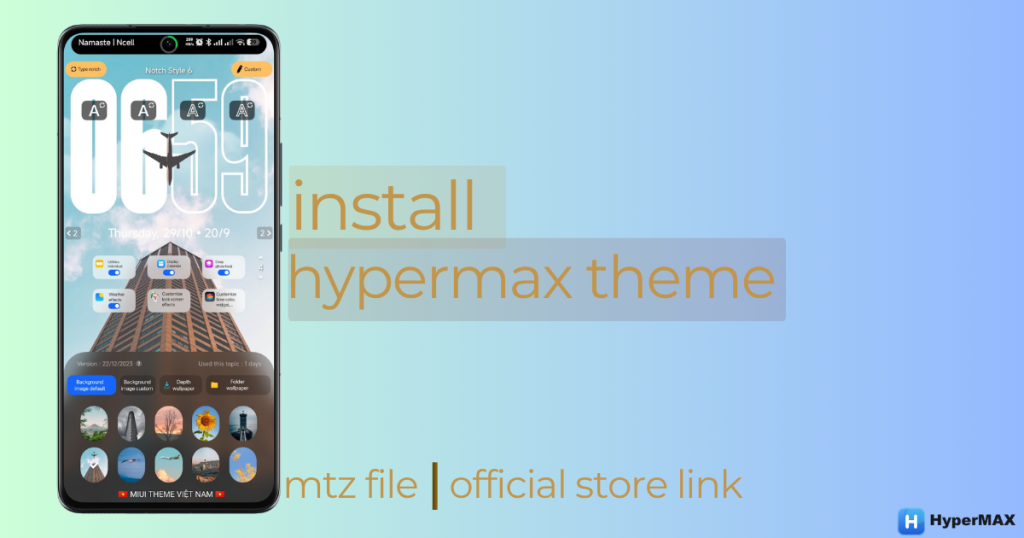
Start your HyperMax MIUI theme download with the Official Theme Store link. HyperMax is a free theme by KimDung, listed for Xiaomi, Redmi and POCO phones. This guide takes you from the store link to the downloaded package, then covers the published MTZ options for readers who need them.
Official Store Link (opens the HyperMax listing in the Xiaomi Themes app).
What you see when you tap the link depends on your phone: either an app chooser for the Themes app, or a Xiaomi page in your browser. Follow the matching section below. If the theme is already downloaded or imported, go to How to Apply the HyperMax Theme.
How this guide was checked. On October 29, 2026, I opened HyperMax in the Themes app on my Redmi Note 14 5G (Global) running HyperOS 3.0, checked the listing, went through the Advanced customisation sheet and tapped Apply. My copy was already on the phone, so I didn’t watch the download itself. The Chinese-page route and the MTZ methods come from published sources, and I haven’t tried them. The full test is in my HyperMax review.
Before you start
- Open Settings > About phone and note your software version. Published sources list MIUI 12, 12.5, 13 and 14 for HyperMax, and MIUI Themer also lists HyperOS. I confirmed it on HyperOS 3.0, but I haven’t tested MIUI or other phones, so check the listing on yours before applying.
- Make sure you’re on a Xiaomi, Redmi or POCO phone. MIUI Themer lists the theme’s region as Global, and I tested on a Global Redmi Note 14 5G. Neither source gives a list of supported models, so the store listing on your own phone is the final check.
- Note your current theme’s name so you can switch back to it later.
- When you open the listing, look for HyperMax by KimDung, size about 36.8 MB.
Official Store Method
This is the main route described by MIUI Themez. The download and the apply step both happen in the Themes app.
You can also skip the link. Open the Themes app, search for HyperMax, and check that the designer is KimDung, the price is Free and the size is about 36.8 MB. This is the route I used.
Open HyperMax in the Official Theme Store
- Tap the Official Theme Store link above.
- Choose the Themes app when your phone asks how to open the link.
- Wait for the Theme Store entry to open and check the name and designer.
- Tap Download.
- Tap Apply once the download finishes.
Downloading puts the theme on your phone, and applying is the step that changes the look. If icons or parts of the interface overlap or don’t display properly afterward, restart your phone, as both sources advise. The Apply guide covers what to check next and how to return to your earlier look.
What the Apply screen looks like on my phone. On HyperOS 3.0 a sheet called Advanced customisation appears when you apply. Lock screen, Home screen, Icons and System were all ticked. Leave all four ticked for the full look, or untick the parts you want to keep. If you use Wallpaper Carousel and want to keep it, untick Lock screen, because the sheet says the theme will change your lock screen wallpaper and clock. Other software versions may show a different screen.
After applying, turn the screen off once and wake it. The Custom menu says the clock and wallpaper sync after that.
To change settings later, open Themes, then My account, then Lock style, tap HyperMax and tap Customise at the bottom. That opens the Custom menu.
If a Chinese-language Xiaomi page opens
MIUI Themer describes a separate route for this screen. Use it only if you see a Xiaomi page in your browser with an Open in app option.
- Tap the three dots in the corner of the page.
- Select Open in app.
- Wait for the Themes Store app to open.
- Download the theme.
- Apply it from the app.
If the install does not start
The official link doesn’t open the store. Open the page in Chrome or the default Xiaomi browser and try the link again. This is the fallback MIUI Themer recommends. If it still fails, MIUI Themez asks readers to contact them.
The Themes app is missing or unsupported. In a March 13, 2024 reply, the MIUI Themez admin said the Themes app may not be supported in your region and that other apps can’t be used to download themes. A third-party MTZ tool applies an existing file but doesn’t restore store access.
The lock screen wallpaper or clock didn’t change. Check that Lock screen was ticked on the Advanced customisation sheet, then turn the screen off once and wake it.
A password prompt appears. The MIUI Themez admin confirmed on March 6, 2024 that this theme doesn’t need a password. If something asks you for one, stop and go back to the official store entry instead.
Music cover art is missing on the lock screen. On my phone, the lock screen showed a music card with cover art while audio was playing. The Custom menu has a large cover style option and says to choose style 2 or 3 if the cover flashes with the Xiaomi Music player. In a May 6, 2025 reply, the MIUI Themez admin suggested using the official Xiaomi Music player. That was a tip for one reader, not confirmation of a feature.
Advanced options: applying an MTZ file
Before you try this
These methods use files from outside the official store, and the second also uses a third-party app. Try the official route first, and only use a file you are permitted to obtain. The theme belongs to KimDung, and a free listing doesn’t give anyone permission to redistribute it. You can return to the default look at any time by applying Classic in the Themes app.
Method 1: Import through the Themes app
Both MIUI Themer and MIUI Themez describe this for custom ROMs such as Xiaomi.eu or MIUIRoom. It only works if your Themes app has an Import option, which not every phone has.
- Download the permitted HyperMax MTZ file.
- Open the Theme Store app and choose Themes.
- Scroll down to Import and tap it.
- Select the .mtz file in the file manager.
- Wait for the import to finish.
- Open the imported theme and apply it.
If you can’t find Import, this method isn’t available on your phone, so go back to the official store route.
Method 2: MTZ Tester
Only MIUI Themez describes this method. MTZ Tester is a third-party app, not from Xiaomi or KimDung. I haven’t tested it and don’t recommend or vouch for it. Its interface is reportedly in Chinese.
- Install MTZ Tester from the Google Play Store.
- Open the app and tap Select & Apply.
- Choose the HyperMax MTZ file.
According to MIUI Themez, choosing the file applies the theme automatically. Unlike Method 1, there is no separate Apply step afterward.
Where these steps come from
The Official Store steps, the app-chooser step and the MTZ Tester method come from MIUI Themez. The Chinese-page route and the browser fallback come from MIUI Themer. The in-app search route, the Advanced customisation sheet, the Apply step and the Custom menu path come from my own test on October 29, 2026. I did not test the download itself, the Chinese-page route or either MTZ method.
Frequently asked questions
Yes. Both sources list it as free, by designer KimDung, at about 36.8 MB.
Published sources list MIUI 12, 12.5, 13 and 14, and MIUI Themer also lists HyperOS. I confirmed it on HyperOS 3.0 on a Redmi Note 14 5G (Global) and haven’t tested MIUI.
No. The official store route is the main method, and MTZ import is only an advanced option for some custom ROMs.
I can’t say. It’s a third-party app that I haven’t tested, so use the official route if you can.
Yes, on my Redmi Note 14 5G (Global). I tested the listing, the Apply step and the lock screen editor, not the download. Check the listing on your own phone.
Open Themes, then My account, then Lock style, tap HyperMax and tap Customise at the bottom.
Untick Lock screen on the Advanced customisation sheet before you tap Apply.
Continue with the downloaded theme
Use the Apply guide once the package is downloaded or imported. For package details, return to the HyperMax homepage. Read the Disclaimer for the limits of this guidance, or use Contact to report a correction.
hypermaxtheme.com is independent and is not affiliated with Xiaomi.