
 Bijay
By Bijay | Last verified: October 29, 2026
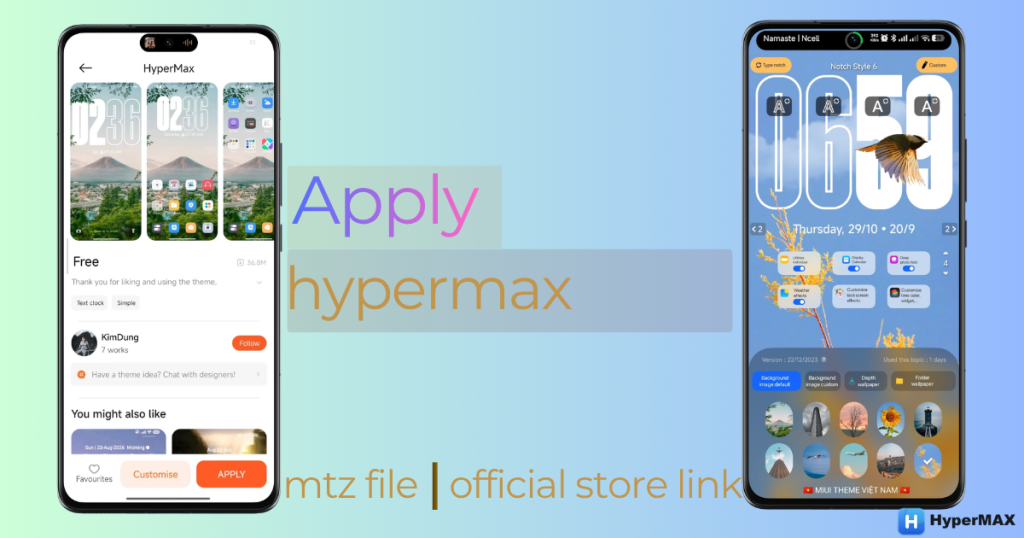
If HyperMax is already downloaded or imported, the next step is to apply it using the same method you started with. HyperMax is a free theme by designer KimDung for Xiaomi, Redmi and POCO phones. This guide covers three routes: the Official Theme Store, an imported HyperMax theme MTZ file, and the separate MTZ Tester app.
If you still need to get the package onto your phone, use the Official Store Method below, or see How to Install the HyperMax Theme for the full download steps. You do not need to follow all three routes below. Choose the one that matches where your theme is now.
How this guide was checked. On October 29, 2026, I applied HyperMax on my Redmi Note 14 5G (Global) running HyperOS 3.0. I opened the listing in the Themes app, went through the Advanced customisation sheet, tapped Apply and then used the Custom menu. My copy was already on the phone, so I didn’t watch the download itself. The Mi Browser route, the Chinese-page route and the MTZ routes come from published sources, and I haven’t tried them. The full test is in my HyperMax review.
HyperMax Theme Quick Facts
HyperMax theme details
| Detail | Information |
|---|---|
| Designer | KimDung |
| Price | Free |
| Package size | About 36.8 MB |
| Listed versions | MIUI 12, 12.5, 13 and 14 |
| HyperOS | Confirmed on my Redmi Note 14 5G (Global) running HyperOS 3.0. MIUI Themer lists HyperOS and MIUI Themez does not, so check the listing on your own phone. |
| Brands | Xiaomi, Redmi and POCO |
| Store tags on my phone | Text clock, Simple |
| Tested on | Redmi Note 14 5G (Global), HyperOS 3.0, October 29, 2026 |
Method A: Apply from the Official Theme Store (Recommended)
The official store is the primary and safest route. MIUI Themez describes downloading the theme through the official store entry and then applying it. If you reached that entry through the Themes app and the download has finished, continue there.
Download Links
Tap the Official Store Link first. It should open the Themes app. If the link doesn’t open, redirects to another page or doesn’t open the Themes app straight away, use the MI Browser steps in the Official Store Method below. If it opens the Themes app straight away, you don’t need them.
Official Store Method
You can easily download & Install the HyperOS Theme on Xiaomi Devices. To do this, you need to visit this website link from the MI Browser (the official/default browser of Xiaomi). Here’s how,
- Copy the link of this Web page, that tap on the URL and then Copy,
- After that, open the MI Browser on your phone and paste this link in the search bar; now it will open this same page in your MI Browser,
- After that, scroll down and go to the Download Links, tap on the OFFICIAL STORE LINK,
- It will prompt you to choose either a Browser or a Themes App. Tap/select the Themes App there,
- Now it will redirect you to the Themes App and the theme,
- Now tap on Download to start downloading this theme.
- After successfully downloading, tap on Apply; that’s it.
The Official Store Method above downloads the theme and applies it. If the theme is already on your phone, start from the steps below instead.
Steps to Apply from the Theme Store
- Open the Themes app on your phone.
- Go to my Account>Themes & find and open the downloaded HyperMax theme.
- Confirm that the listing shows HyperMax by KimDung and a size of about 36.8 MB.
- Check the compatibility information on the listing against your software version. You can find your version under Settings > About phone.
- Tap Apply.
What the Apply screen looks like on my phone. On HyperOS 3.0 a sheet called Advanced customisation appeared when I applied. Lock screen, Home screen, Icons and System were all ticked. Leave all four ticked for the full look, or untick the parts you want to keep. If you use Wallpaper Carousel and want to keep it, untick Lock screen, because the sheet says the theme will change your lock screen wallpaper and clock. Other software versions may show a different screen.
After applying, turn the screen off once and wake it. The Custom menu says the clock and wallpaper sync after that.
To change settings later, open Themes, then My account, then Lock style, tap HyperMax and tap Customise at the bottom. That opens the Custom menu.
Before You Tap Apply: Check Compatibility
MIUI 12, 12.5, 13 and 14 are listed for HyperMax. HyperOS is listed by MIUI Themer but not by MIUI Themez, so the sources disagree. It was available on my Redmi Note 14 5G (Global) running HyperOS 3.0, but I haven’t tested MIUI or other phones. Rely on the listing on your own phone as the final check before applying.
If You Arrived Through a Chinese-Language Xiaomi Page
MIUI Themer describes an Open in app option on a Chinese-language Xiaomi browser page. That option also leads to the Themes Store app. Once the download is there, apply the theme from the app as described above. The browser screen is only an entry route. It is not a separate way of applying the theme.
Advanced Options: Applying a HyperMax Theme MTZ File
Before You Try This
⚠️ Important safety warning: These options use files from outside the official store. The MTZ Tester route also uses a third-party app.
- Always try the official Theme Store route first.
- Only use an MTZ file you are permitted to obtain. HyperMax belongs to KimDung, and a free listing does not give anyone permission to redistribute it.
- Avoid any HyperMax file that asks for a password. The official theme does not require one. A password-locked file is a red flag, so delete it and return to the official store entry.
- You can return to the default look at any time by applying Classic in the Themes app.
Method 1: Apply an Imported HyperMax Theme MTZ File
MIUI Themer and MIUI Themez both describe importing an MTZ file through the Themes app on custom ROMs such as Xiaomi.eu or MIUIRoom. If your import has finished, complete these steps:
- Open the Themes app.
- Open the imported HyperMax theme.
- Tap Apply.
Only downloaded the .mtz file? Then you have not finished the import yet. Go back to the MTZ import instructions. They explain how to choose Themes, find Import and select the file in your file manager.
Can’t find Import? This route only works if your Themes app shows an Import option. The published custom-ROM method does not confirm that these controls exist on every phone. It also does not prove that your specific model is supported just because it belongs to a listed phone family. If Import is missing, use the official store route instead.
Method 2: Apply with MTZ Tester
MIUI Themez describes MTZ Tester as another way to apply an MTZ file.
⚠️ Third-party app warning: MTZ Tester is not made by Xiaomi or by the theme’s designer, KimDung. Install it only from the Google Play Store, and use the official Theme Store route whenever you can. A third-party MTZ tool can apply an existing file, but it does not restore Theme Store access.
If you have already installed the app from the Google Play Store, the published steps are:
- Open MTZ Tester.
- Tap Select & Apply.
- Choose the HyperMax MTZ file.
Read this before choosing the file: MIUI Themez says the app’s interface is in Chinese. It also says the theme is applied automatically as soon as you select the file. There is no second Apply confirmation, so double-check that you are choosing the correct file.
What to Check After Applying HyperMax
Use the checklist below to see what changed on your phone. Results can differ between devices and software versions, so do not assume your result will match every other setup.
Post-apply checklist:
- Icons: Look for the icon changes described in the listing.
- Status bar: Pull down the notification panel and review the status bar.
- Settings: Open Settings and check the described redesign.
- System apps: Review Phone, Messages, File Manager and Contacts for the similar layout MIUI Themez describes.
- Volume panel: Press a volume key and check the panel styling.
What I saw after applying. My home screen showed the wallpaper I had picked in the lock screen editor, a pill-shaped text clock at the top and rounded app icons with soft shadows. I didn’t capture a before-and-after of every app, so I can’t tell you which individual icons, system apps or panels changed. The Settings and system app items in the checklist above come from MIUI Themez’s description, and I didn’t check them on my phone.
What the tags say, and what the Custom menu offers:
- The store tags on my phone were Text clock and Simple, and MIUI Themer also lists Nature. Tags describe the theme’s style, not its controls.
- The lock screen has far more than the tags suggest. From my own test of the Custom menu:
- Seen working: the outlined lock screen clock, the depth effect, the Smart Island pill and notch types (a black pill at the top, not Apple’s Dynamic Island), backgrounds, wallpaper effect, music card, notifications, shortcuts and Focus mode.
- In the Custom menu but not tested: AOD, StandBy, fingerprint effects, the charging effect, the face unlock icon and personal quotes.
- Not checked: whether any of this behaves the same on MIUI or on other phones.
The full list is in my HyperMax review.
Troubleshooting: If HyperMax Looks Wrong
MIUI Themer and MIUI Themez both advise restarting the phone if items overlap or do not display properly after applying.
Troubleshooting checklist:
- Restart your phone. This is the fix both sources recommend for display problems.
- Recheck the affected area. Return to the screen that looked wrong and see if it now displays correctly.
- Look for a password prompt. If the theme or file asks for a password, stop. The official HyperMax theme does not need one.
- Switch back if needed. If the layout is still wrong or you don’t like the look, use the steps below to restore your previous theme.
The lock screen wallpaper or clock didn’t change. Check that Lock screen was ticked on the Advanced customisation sheet, then turn the screen off once and wake it.
Restarting is the only display-related advice the two sources give. They do not offer a verified repair procedure for every layout issue.
How to Switch Back to Your Previous Theme
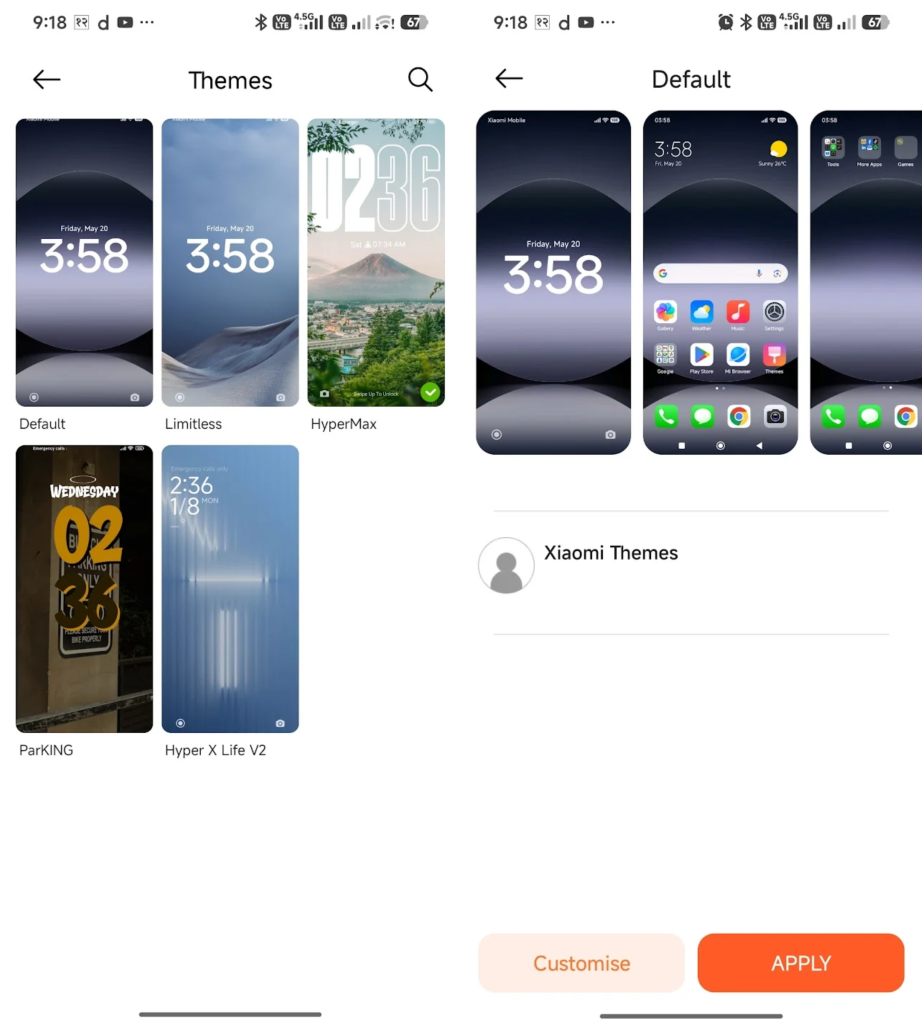
You can return to the default look by applying Classic. If you noted your previous theme’s name before installing HyperMax, you can choose that theme instead.
- Open the Themes app.
- Go to my account>Themes.
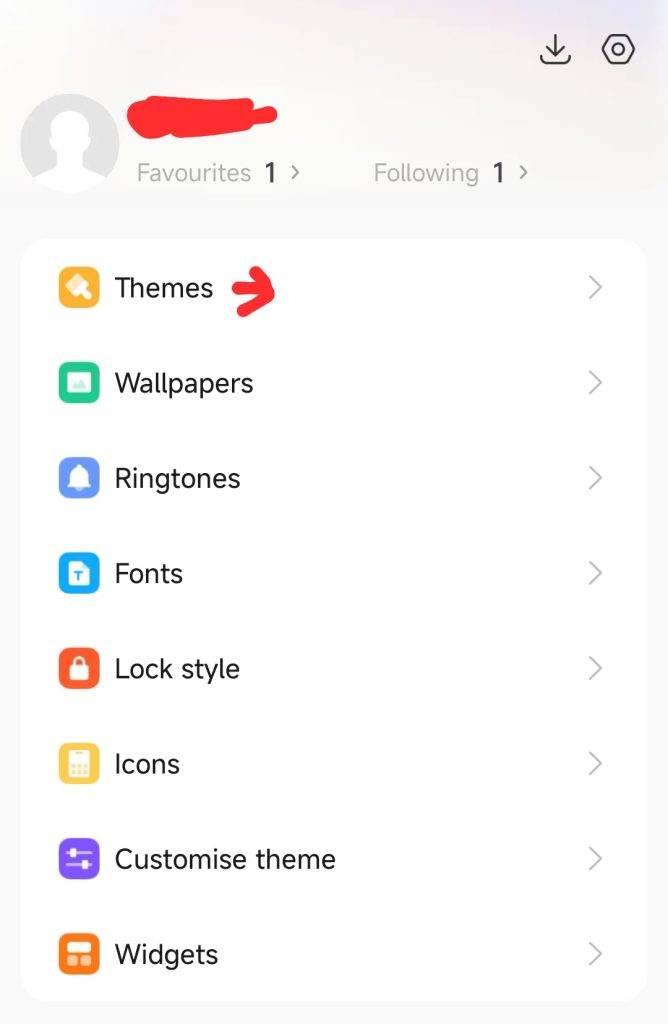
- Select Default, or select your previous theme by name.
- Tap Apply.
Frequently Asked Questions
No. The MIUI Themez admin confirmed on March 6, 2024 that this theme does not require a password. If a file or app asks you for one, do not try to find or enter a password. Delete the file and return to the official Theme Store entry.
In a March 13, 2024 reply, the MIUI Themez admin suggested that your region might not support the Themes app. The admin also said other apps cannot be used to download themes. This is a possible explanation, not a diagnosis of your specific device.
In a May 6, 2025 reply, the MIUI Themez admin suggested using the official Xiaomi Music player. Treat this as a tip, not a confirmed theme feature or a guaranteed fix.
Restart your phone, as both sources advise. Then review the area that looked wrong. If you prefer to undo the change, apply Classic or your previous theme in the Themes app.
No. The Official Theme Store route is the main method. MTZ import is an advanced option that only works on some custom ROMs.
Yes, on my Redmi Note 14 5G (Global). I tested the listing, the Advanced customisation sheet, the Apply step and the lock screen editor, not the download. Check the listing on your own phone.
Untick Lock screen on the Advanced customisation sheet before you tap Apply. The sheet says the theme changes your lock screen wallpaper and clock.
Open Themes, then My account, then Lock style, tap HyperMax and tap Customise at the bottom.
Sources and Related Guides
The application steps in this guide are based on instructions published by MIUI Themez and MIUI Themer. The Advanced customisation sheet, the Apply step, the sync step, the Custom menu path and the notes on what I saw after applying come from my own test on October 29, 2026. I did not test the download itself, the Mi Browser route, the Chinese-page route or either MTZ method. The post-apply checklist is meant for checking results on your own phone.
- Return to the HyperMax homepage for package details.
- See the Install guide for download and import steps.
- Read the Disclaimer for the limits of this guidance.
- Use Contact to report an error.
hypermaxtheme.com is independent and is not affiliated with Xiaomi.